 WhoIsCooking
Get the app, $5
Why is my Mac getting so hot?
A Mac gets hot for one reason: something is making the chip work hard. The trick is finding out what.
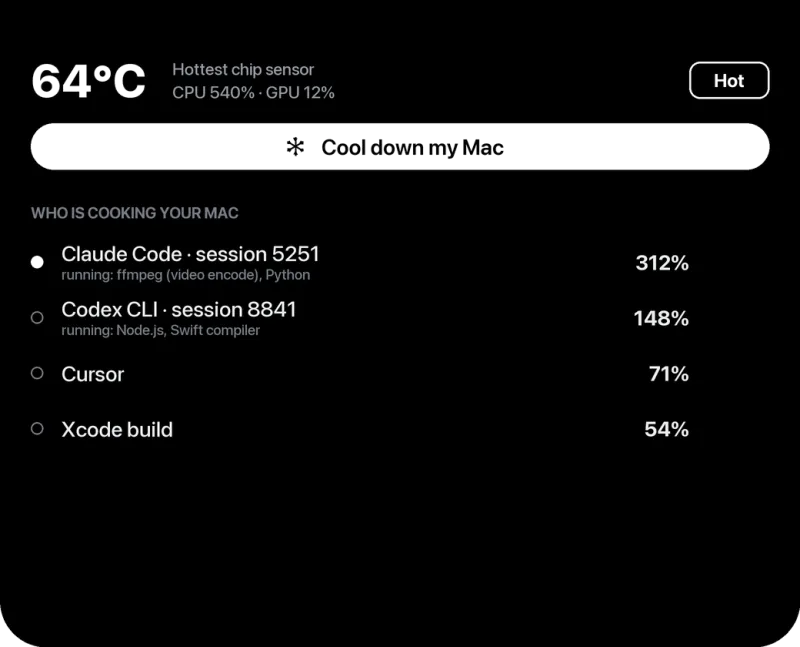
First: is it actually too hot?
Apple Silicon Macs are designed to run warm under load. The chip can reach 90 to 100°C during heavy work and still be inside its limits; macOS slows the chip down (throttles) long before anything is damaged. So "hot" alone is not a fault. It becomes a problem when:
- the Mac is hot while you are doing almost nothing,
- the fans run loud for hours, or the Mac feels slow and laggy,
- the bottom is too hot to keep on your lap,
- you see a warning or the Mac shuts down by itself.
To see real numbers, read what a normal Mac temperature is and how to check it.
How to find what is heating your Mac (2 minutes)
- Open Activity Monitor (press Cmd + Space, type "Activity Monitor").
- Click the CPU tab, then click the % CPU column so the busiest process is at the top.
- Watch it for a minute. A process that stays above 80 to 100% is what is making the heat. (100% means one full core, so 400% means four cores.)
- Check the Energy tab too. "Energy Impact" shows which apps use the most power over time, including ones that only spike now and then.
The 10 most common causes
1. Too many browser tabs
Chrome, Edge, Arc and Safari run each tab as its own process. Tabs with video, ads, live dashboards or web apps (Figma, Google Docs, Notion) keep using CPU in the background. In Activity Monitor they show up as "Google Chrome Helper (Renderer)" or "Safari Web Content". Close tabs you do not need, or turn on the browser's memory and energy saver.
2. Video calls
Zoom, Teams, Google Meet and FaceTime encode your camera in real time. Background blur and virtual backgrounds make it much heavier. Turn effects off for long calls.
3. Heavy work: exports, renders, builds, games
Final Cut, Premiere, DaVinci Resolve, Blender, Xcode builds, Docker and games are supposed to use the whole chip. Heat here is expected. See how to keep a Mac cool during heavy work.
4. AI tools and coding agents
Claude Code, Codex, Cursor and similar agents start builds, tests and dev servers on their own, sometimes several at once, and often leave them running. Local AI models (Ollama, LM Studio) push the GPU hard. See why AI coding agents overheat a Mac.
5. Background tasks after a macOS update or migration
After an update, a new Mac setup or a big file copy, macOS re-indexes Spotlight (mds_stores, mdworker), analyses your photos (photoanalysisd, mediaanalysisd) and syncs iCloud (bird, cloudd). This can take hours to a day. It ends by itself. See Mac hot when doing nothing.
6. A stuck or runaway process
A crashed helper, a sync app in a loop, or a forgotten dev server can sit at 100% CPU forever. If one process stays at the top of Activity Monitor and you do not recognise any reason for it, quit it (select it, click the ⓧ button, then Quit).
7. Charging
Charging produces heat in the battery, and fast charging produces more. A Mac that is both charging and working hard will be warmer than either alone. See MacBook hot while charging.
8. Blocked airflow
Beds, pillows, blankets and your lap block the air. MacBook Pro models pull air in and push it out near the hinge, so a closed lid on a soft surface (clamshell mode) or a tight case makes it worse.
9. A warm room or direct sunlight
Apple rates Macs for use at an ambient temperature of 10 to 35°C (50 to 95°F). In a hot room the chip has less headroom, so the fans run sooner and the Mac throttles earlier.
10. External displays
Driving one or more high-resolution external monitors makes the GPU work harder, especially with scaled resolutions. Expect a few degrees more.
Quick fixes that work
- Quit or close whatever is at the top of Activity Monitor.
- Put the Mac on a hard, flat surface, or a laptop stand.
- Use Low Power energy mode (System Settings → Battery → Energy Mode; on older macOS it's a "Low Power Mode" switch) for long jobs.
- Restart if a system process has been stuck high for a long time.
- Keep macOS and apps updated; many heat bugs get fixed in updates.
- If you need the heavy work to keep running, move it to the efficiency cores so it runs cooler. See how to cool down a Mac.
When to contact Apple
If your Mac is hot while Activity Monitor shows nothing using CPU, the fans are loud all the time with nothing running, or it shuts down on its own, run Apple Diagnostics (on Apple Silicon: shut down, hold the power button until startup options appear, then press Cmd + D) and contact Apple Support.
Frequently asked questions
Is it normal for a MacBook to get hot?
Yes, during heavy work. Apple Silicon chips can reach 90 to 100°C under load and stay within their design limits. It is not normal for a Mac to be hot while it is idle; that usually means a background process is busy.
Can overheating damage my Mac?
Rarely. macOS slows the chip down and, at the extreme, shuts the Mac off before heat can damage it. Long periods of high heat are harder on the battery, so it is still worth keeping it cooler.
Why is my Mac hot when I'm not doing anything?
Usually a background task: Spotlight indexing, Photos analysis or iCloud sync after an update, a browser tab running in the background, or a stuck process. Activity Monitor sorted by % CPU shows which one.
Why is my MacBook Air hot but makes no noise?
The MacBook Air has no fan. It cools passively through its case, so the case gets warm and the chip slows down under long loads instead of spinning up a fan.